SQL Server Services Status Using DMV’s – 2008R2 SP1/Denali

Today let’s see a new way to look at Installed SQL Services on your Server from T-SQL.
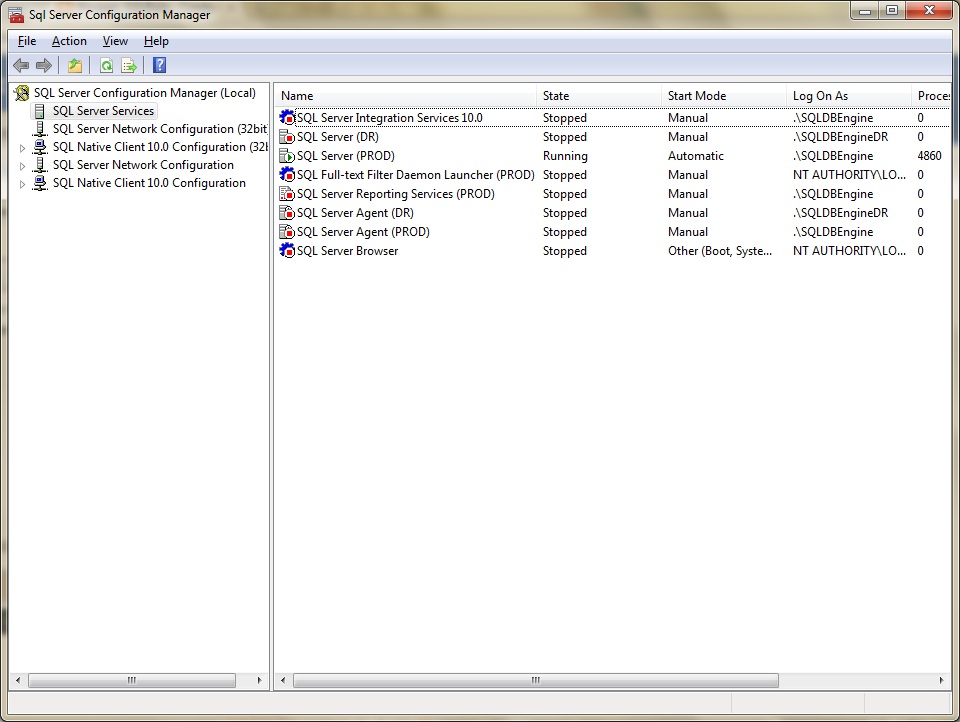
Till SQL Server 2008 for verifying services status, service accounts, startup type etc..we’ve to go and verify from SQL Server Configuration manager as shown below.

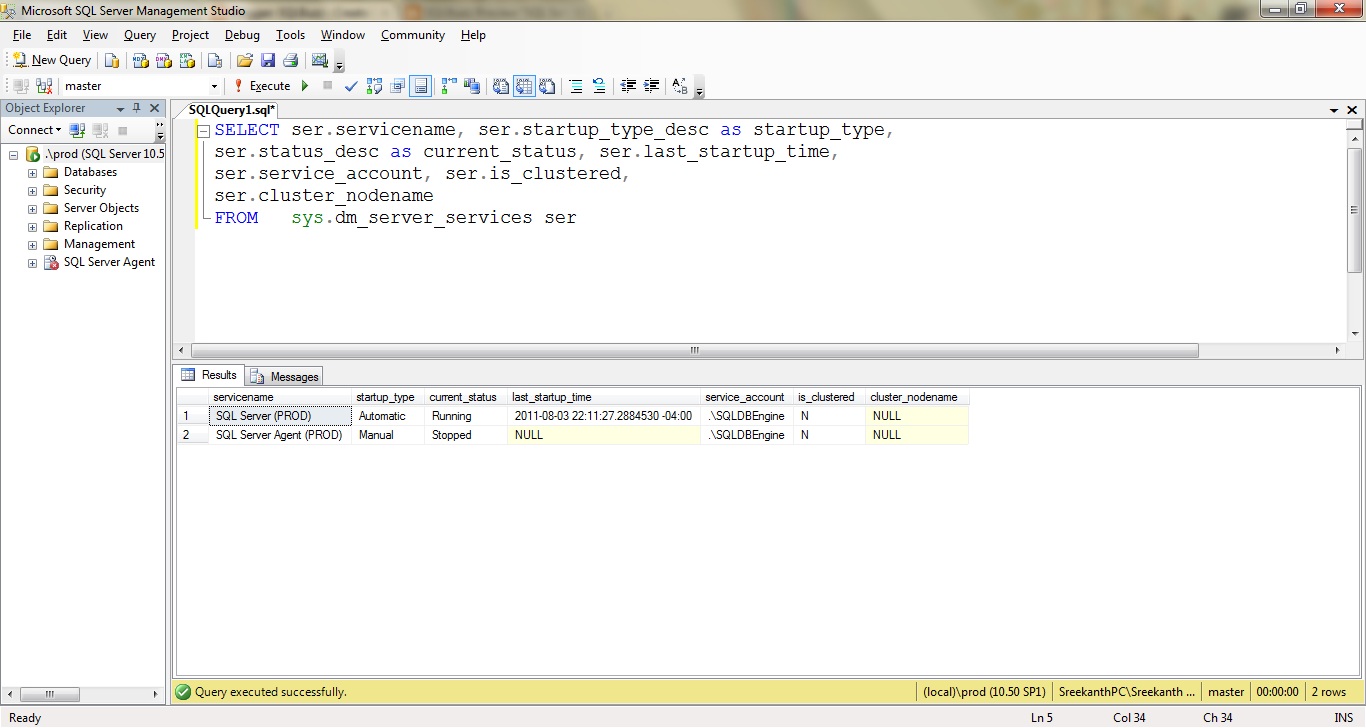
Starting SQL Server 2008R2 SP1 Microsoft introduced a new DMO(sys.dm_server_services)  to validate services using Simple T-SQL. Let us consider only services of “PROD” Instance in our scenario.

I’ve connected to PROD Instance and executed the below mentioned T-SQL statement.
T-SQL:
SELECT ser.servicename, ser.startup_type_desc as startup_type,
ser.status_desc as current_status, ser.last_startup_time,
ser.service_account, ser.is_clustered,
ser.cluster_nodename
FROM   sys.dm_server_services ser
Output:


If you observe the result set, it is giving all the Cool information regarding installed Services. Interestingly this DMV is returning only Instance specific Services(Which makes sense because you are connected to that specific instance) such as DB Engine Service and Agent Service, not Server scoped such as SSIS. Also, it is not returning details about SSRS(PROD) and Full text search(PROD) service details!! Am not sure why 😦
You can make use of this in DENALI too. Interestingly DENALI is returning a duplicate entry for Agent Service for me!! Not sure why…i think it’ll be resolved in RTM Release of DENALI.
Happy Testing Denali!

Installing SQL Server 2008/2008R2 Failover Cluster- Part4

In the third part of this series InstallCluster-Part3, I’ve shown you how we can create a Domain/DNS and add rest of the Nodes to that domain, configuring NIC’s and all that Cool stuff.
In this part of the series let’s see how can we configure our SAN.
As I already mentioned in earlier, I’ll use Starwind Software to build my SAN. Just download and copy the exe to my SANDC machine and double click on the executable. It will be pretty straight forward Installation with Next->next choosing all the defaults.
Note: Microsoft ISCI Initiator service should be turned ON and set to start automatically.
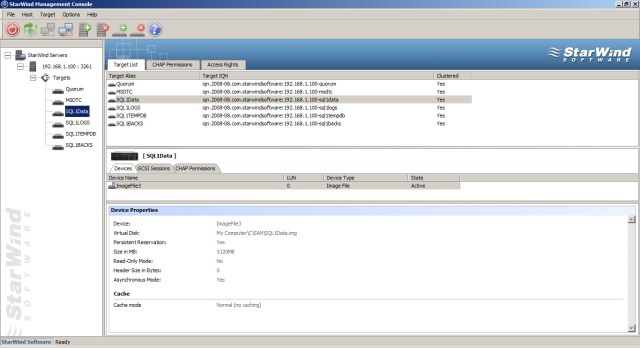
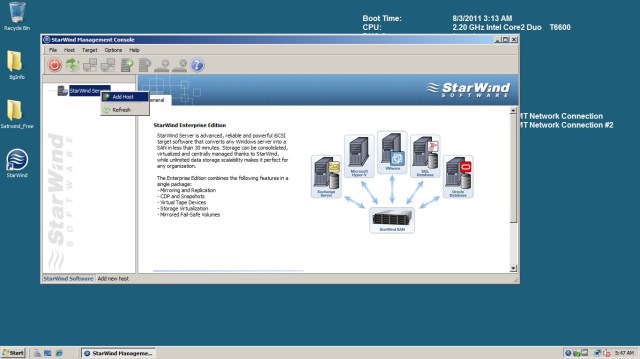
Once Installation is complete and you should be seeing the below screen if you open the Starwind Management Console.

Right click on the Starwind Servers and choose Add Host as shown above.

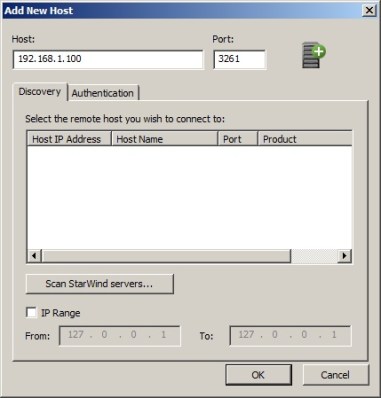
Enter the IP Address of the machine which you are planning to act as our SAN. In our case it’s machine SANDC.

Once the Host has been added, now you’ve to connect to it. User: Root/ PWD:starwind.
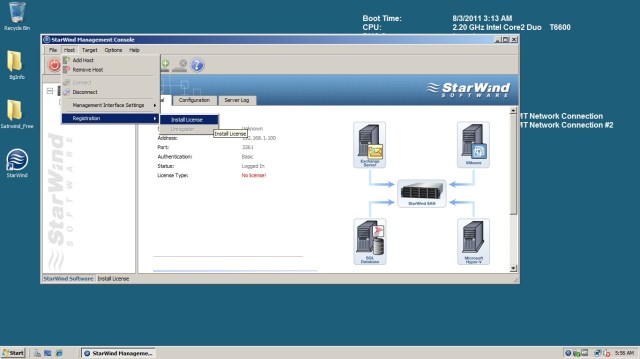
You’ve to now apply the license key which comes with the free download. You can follow the below steps for installing license. Host – Registration ->

Browse to the folder where the key is located and hit “OKAY”.
Now we are all set to create our LUN’S using this management console.
Creating LUNs using Starwind:
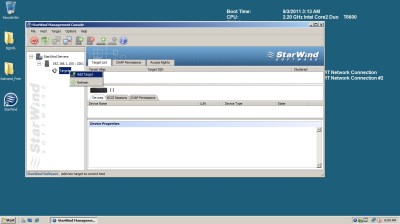
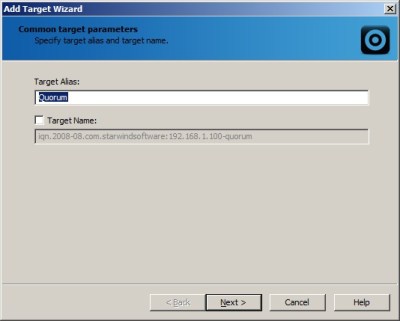
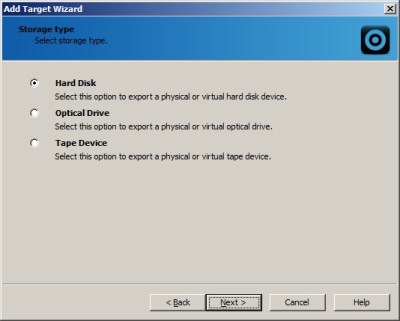
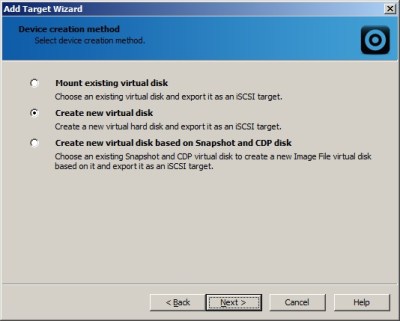
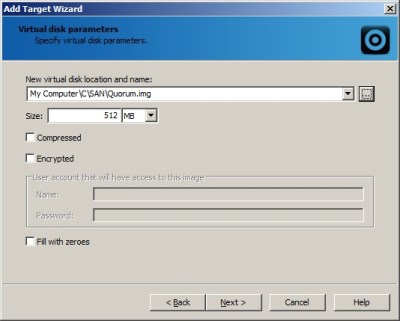
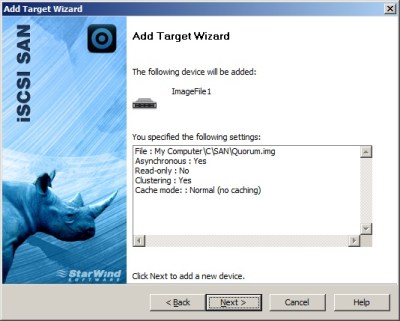
Once you are successfully connected to the Host, you’ve the ability to add as many targets as we need. You can add targets by following the below screenshots in sequence.

Next and Finish. Similarly go ahead and create Drives with names MSDTC, SQL1DATA,SQL2DATA, SQL1LOG,SQL2LOG,SQL1BAK,SQL2BAK,SQL1TEMPDB,SQL2TEMPDB. (All the PROD2 LUNS can be easily added to cluster in future if you are planning to make it an A-A cluster from A-P).

I’ve created all the required LUN’s for my Active-Passive Installation of Cluster as shown below.

Prestoooo……! That’s all we need to configure your SAN Drives in Starwind.
Now we are just left with initiating those SAN Drives from Windows, so that our Servers can see them as Drives. All we need is just going to iSCSI Initiator and discover our SAN Server.(Remember Starwind SAN is typical iSCSI, not Fiber channel(HBA) based) Let’s see how can we do that below.
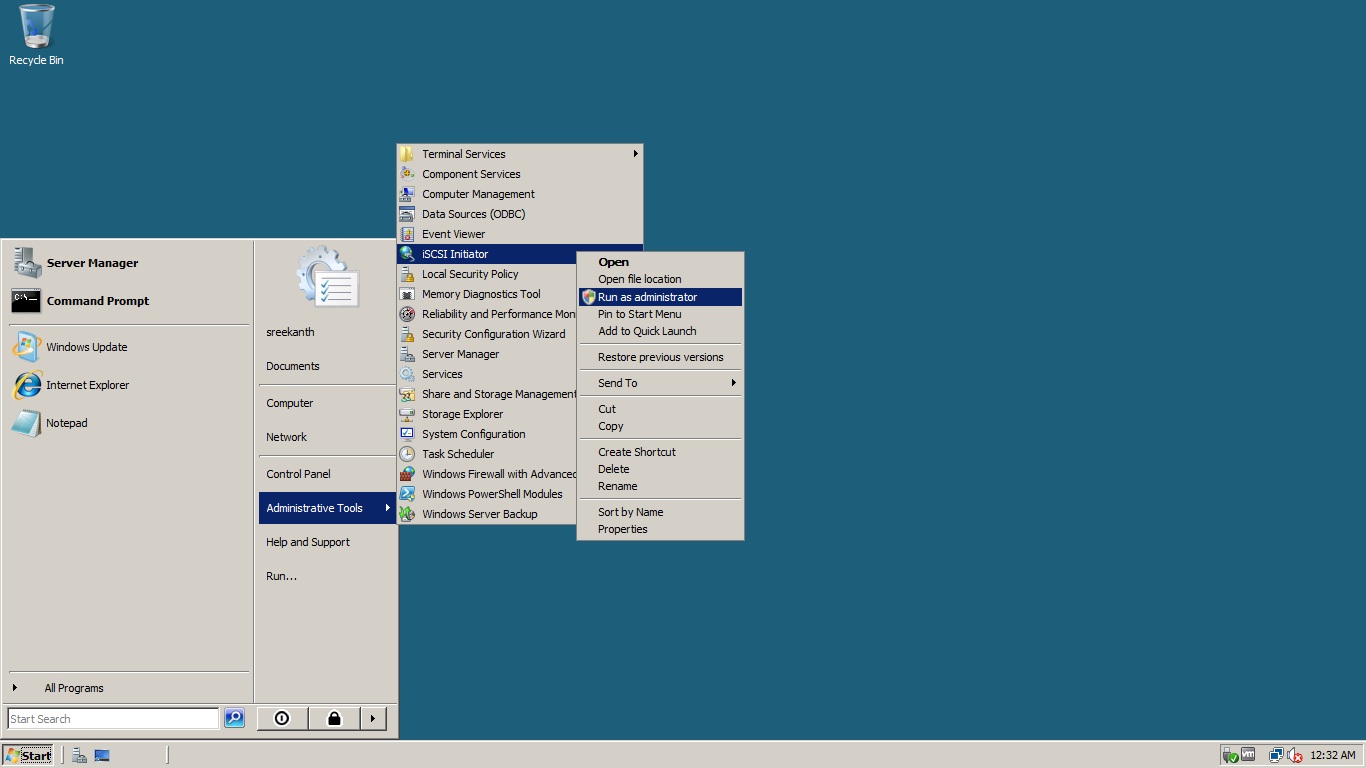
Login to Node1 with Administrator Account and go to Start->Administrative tools and Run iSCSI Initiator as Administrator as shown below.

In Discovery Tab click “Add Portal”. Enter the SANDC machine IP Address.

Now, switch to Targets Tab and you should be seeing all the Starwind targets we created as shown below.

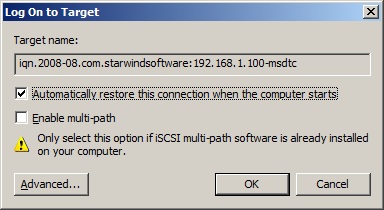
Now, select a target and click on “Log On” button and dont forget to select “Automatically restore connection when the computer starts” option as shown below.

Click OK and do the same for all the targets. Once done, you should be seeing something similar to the below screenshot.

Now….Let’s see what’s in there inside “My Computer”….

Hmmmmmm…..Looks like Computer didn’t recognized our new drives!! So what are we missing here???

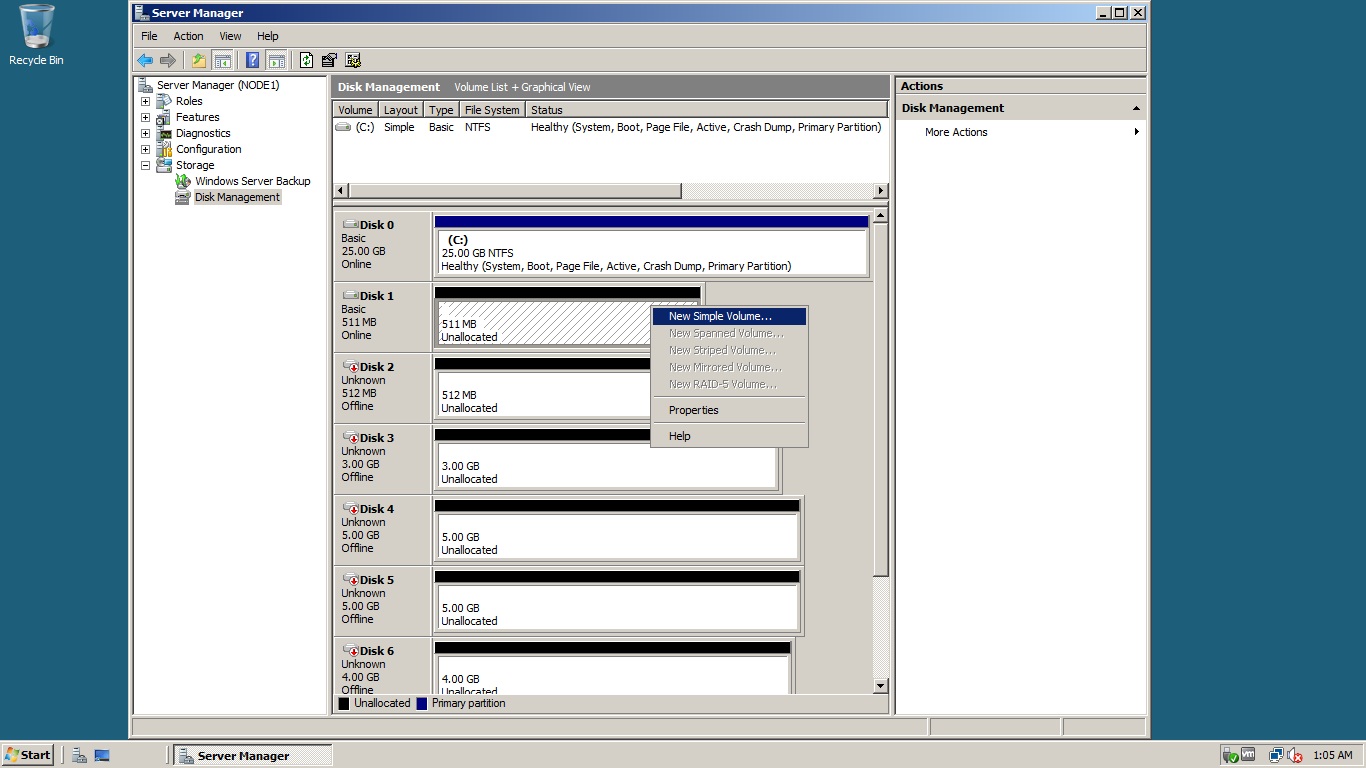
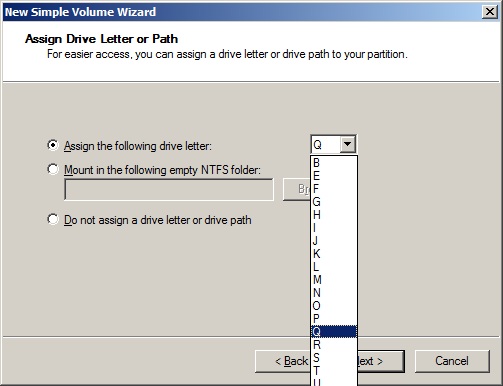
Storage Manager: Right Click on my computer and Manage and Go to Storage and Prestooooo…..now we are able to see those targets as Offline. All we need here is to Bring those drives Online and do a Quick Format and Lable them and assign them with a Drive letter. Let me show you guys what i’m saying for one drive…Follow the screenshots below sequencially.


Now you will be seeing drive is Online but not Initialized…You’ve to Right click again and Click “Initialize Disk” as shown below.


Choose MBR if asked for and Click Ok. Now You can see your Drive as Online, but you still need to Format the Disk with NTFS.

RC again and click New Simple Volume

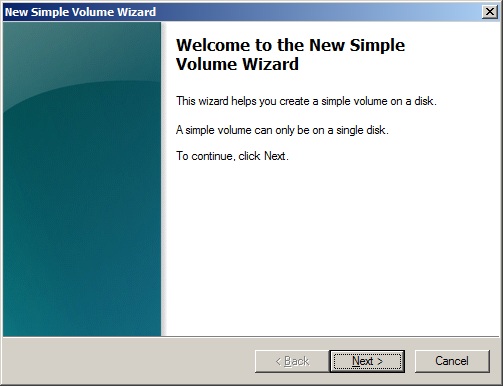
You’ll be welcomed with a simple Wizard as follows…

Now let’s go to My Computer and see how it looks now….Keep your Fingers crossed!!

Hohooooooooooo……..There we Go!!!! We did it:) Now do the same with all the drives as an exercise for yourself. I’ll do the same and My computer now looks like below

Perfect….Okay Guys We’ll continue with creating a Windows Cluster in the next part of this series.
Installing SQL Server 2008/2008R2 Failover Cluster- Part3

This is the 3rd part of the SQL Cluster 2008 Installation Series.
In the 2nd part InstallCluster-Part2 I’ve explained how to Install Windows Server 2008 on your Virtual Machine(s). In this part let’s try to configure our DC and join rest of the Nodes into our domain.
why to wait, Let’s start!!
Before proceeding any further let me tell you what I’ve done so far.
I’ve Installed all the latest windows Updates(Including SP1) to all my three machines(you’ll get .Net framework 3.5 SP1 along these updates).
I’ve Disabled Firewall and UAC (User Account Control) on all the machines(This makes our cluster installation little bit easy dealing with Ports and IP’s and etc. Since this is a LAB environment, I’m Okay here. On your real environment you shouldn’t disable Firewall).
I’ve renamed the Computer names to SANDC, NODE1 and NODE2 as per our game plan. By default Windows comes up with some goofy names! To rename your computer, Right click on My computer – >Properties->change settings ->change button(system properties window)  and give a name and OK ->OK. Reboot Server.

Configuring your 1st domain controller in your forest:
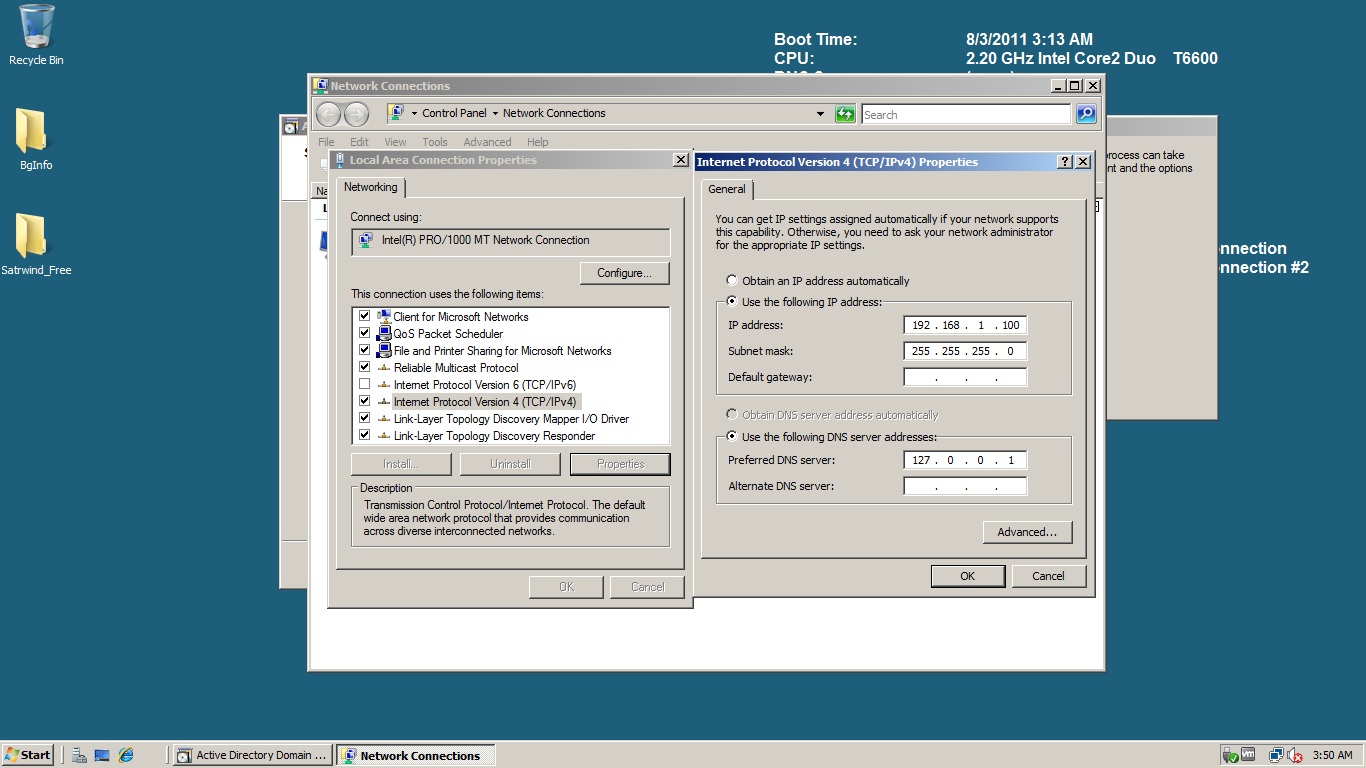
Very Very Imp: My NIC Settings on SANDC Machine


Go to your SANDC machine and Start ->Run and type “dcpromo” without double quotes.
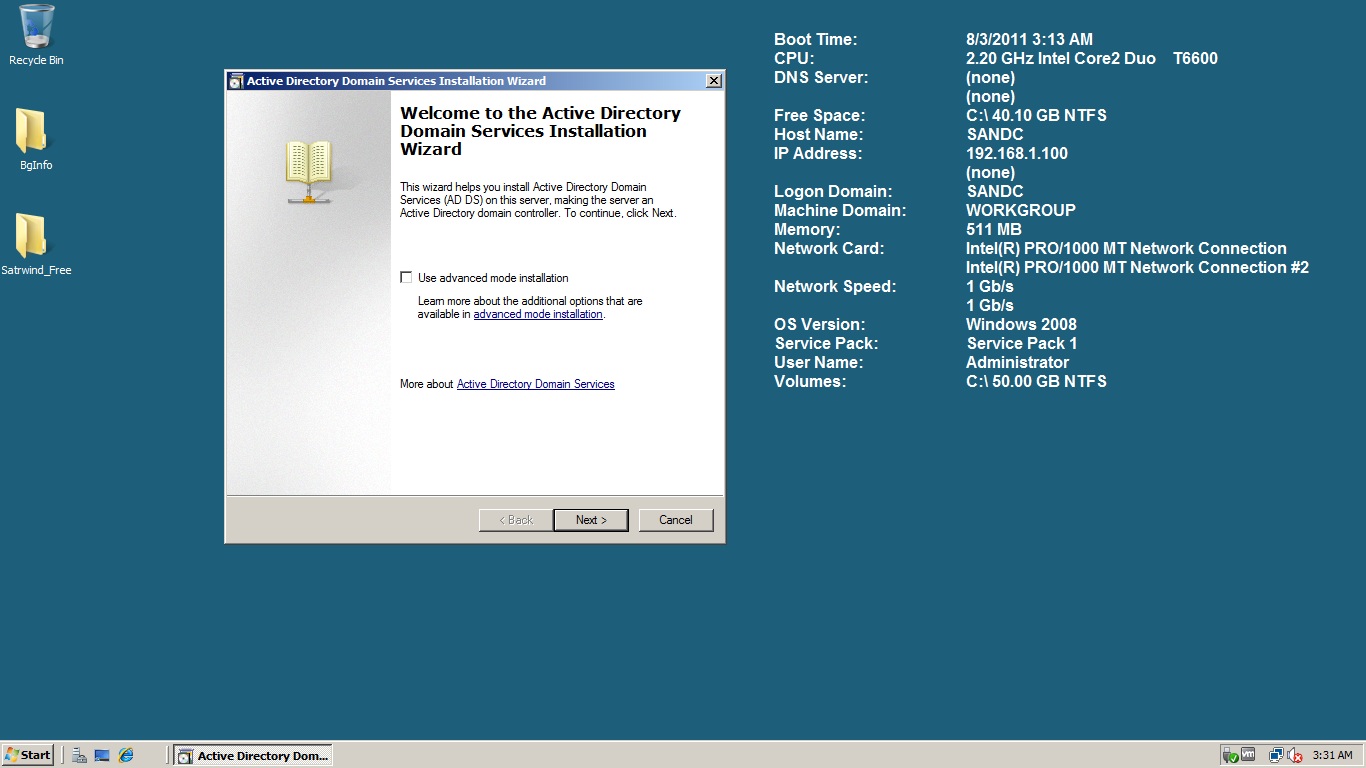
You will be welcomed with the below screen.

Note: BTW, if you want that background information what I’m pulling on my Desktop you can download a software called “BGINFO”:)

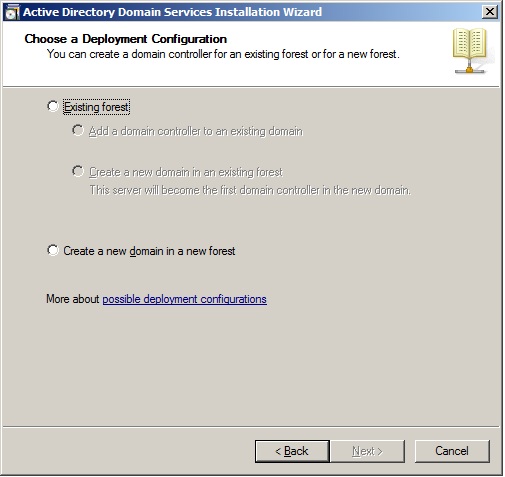
Now, let’s proceed further by clicking Next -> Next. You should be getting the screen as shown below.

Choose Create a New domain in a forest. Give a name(FQDN) for your domain.(I’ve chosen sree.local in my case). Choose Forest Functional level as 2008 as shown below and click Next(we would not have any issue because all of our servers are running on Windows Server 2008).

Select DNS Server and proceed further as shown below.

It might pop up a warning message, you can ignore that for our lab. In the Next Screen it asks for Active Directory Database locations and Sysvol locations. Leave it to default and proceed further. It’ll ask to configure Directory mode Restore Admin Password. Choose a strong pwd and proceed next. If everything goes well upto this point, you should be seeing the below screen

It will take some time to do all the MuboJumbo behind the scenes and configure all our settings. Finish and Restart. Once you restart the machine, you should be seeing, the machine is part of a Domain called “sree”, not anymore a work group member…hurray!!!! 🙂
Now, if you go to Start->Administrative tools, you will be seeing all the Active Directory related stuff being created on our Domain Controller. I’ve created a spl user and added him as a Domain Admin(just in case needed for any emergencies).

Joining Other Servers(Node1 and Node2) to Domain:
Okay! Now it’s time to join our two other machines Node1 and Node2 to our newly created domain.
I’ll show you joining Node1. You can follow exactly the same for adding Node2 to (y)our domain.
Joining Node1 to sree.local Domain:
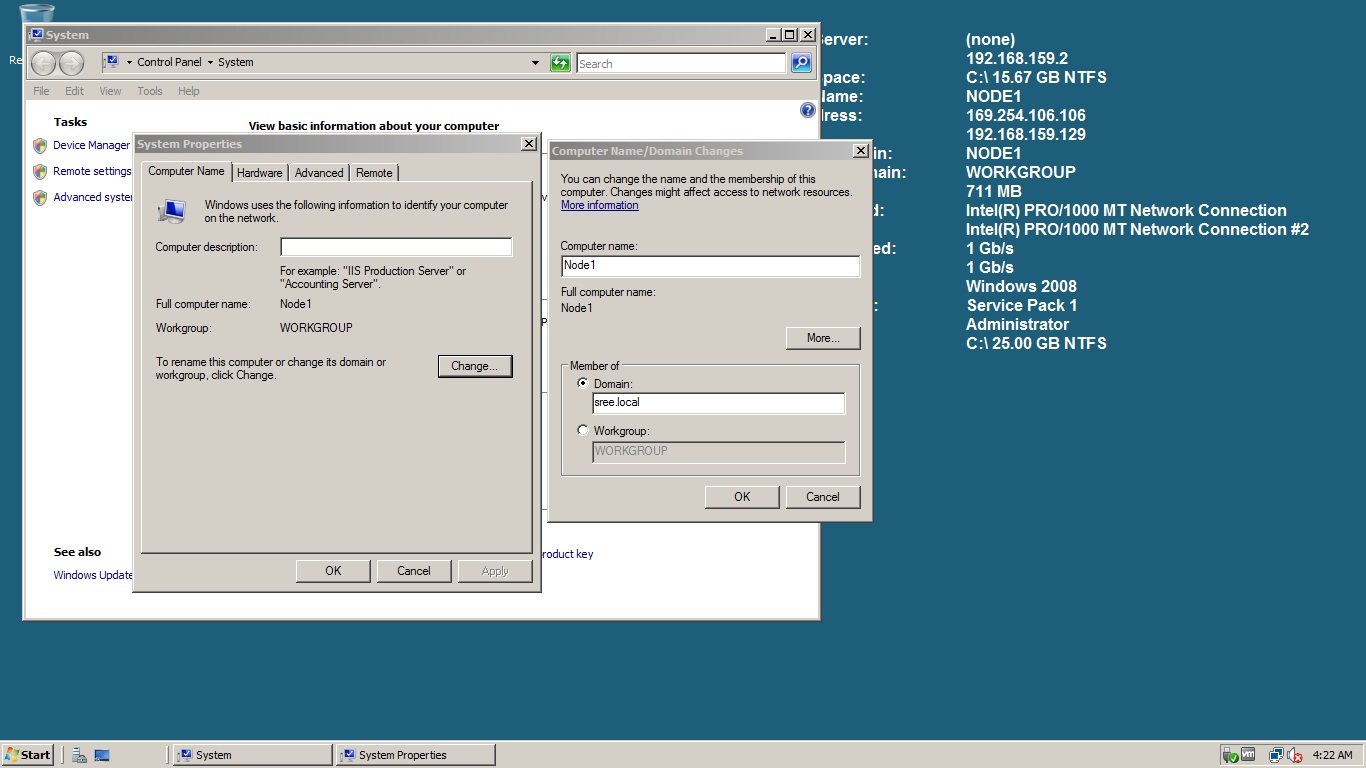
Login to Node 1 with administrator account and go to the same place where you renamed the Server name to Node1.
Change Member of Workgroup to Domain as shown below. (In my case I’ve created a domain called sree.local)


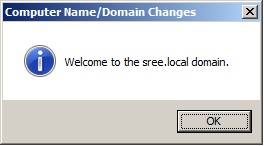
Once you click Ok, it will ask for credentials which has necessary permissions to add new servers to domain. In my case I’ve chosen the Domain Admin account to perform this task. If everything has been followed accurately till now, you should be seeing the below display message.(A reboot is required to apply these changes)

Perform the same on Node2 as well to add it into domain.

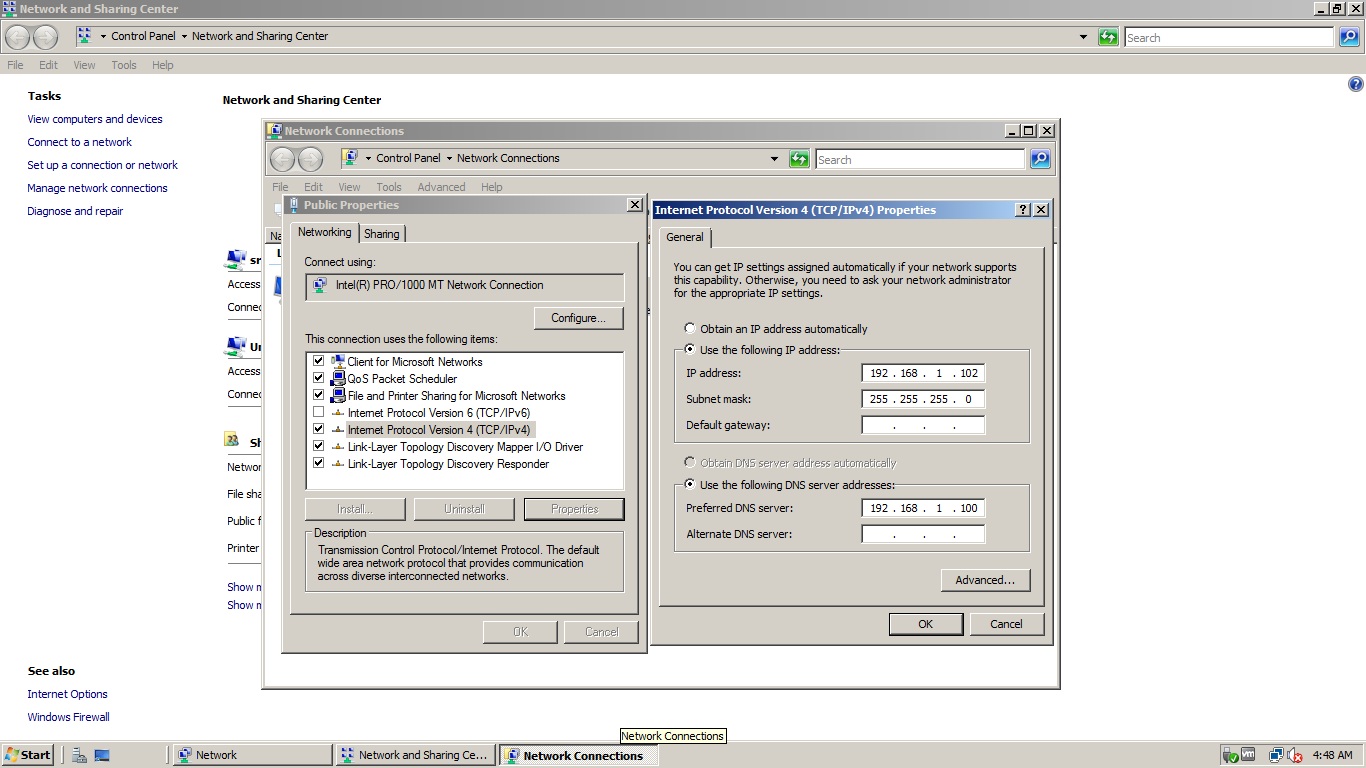
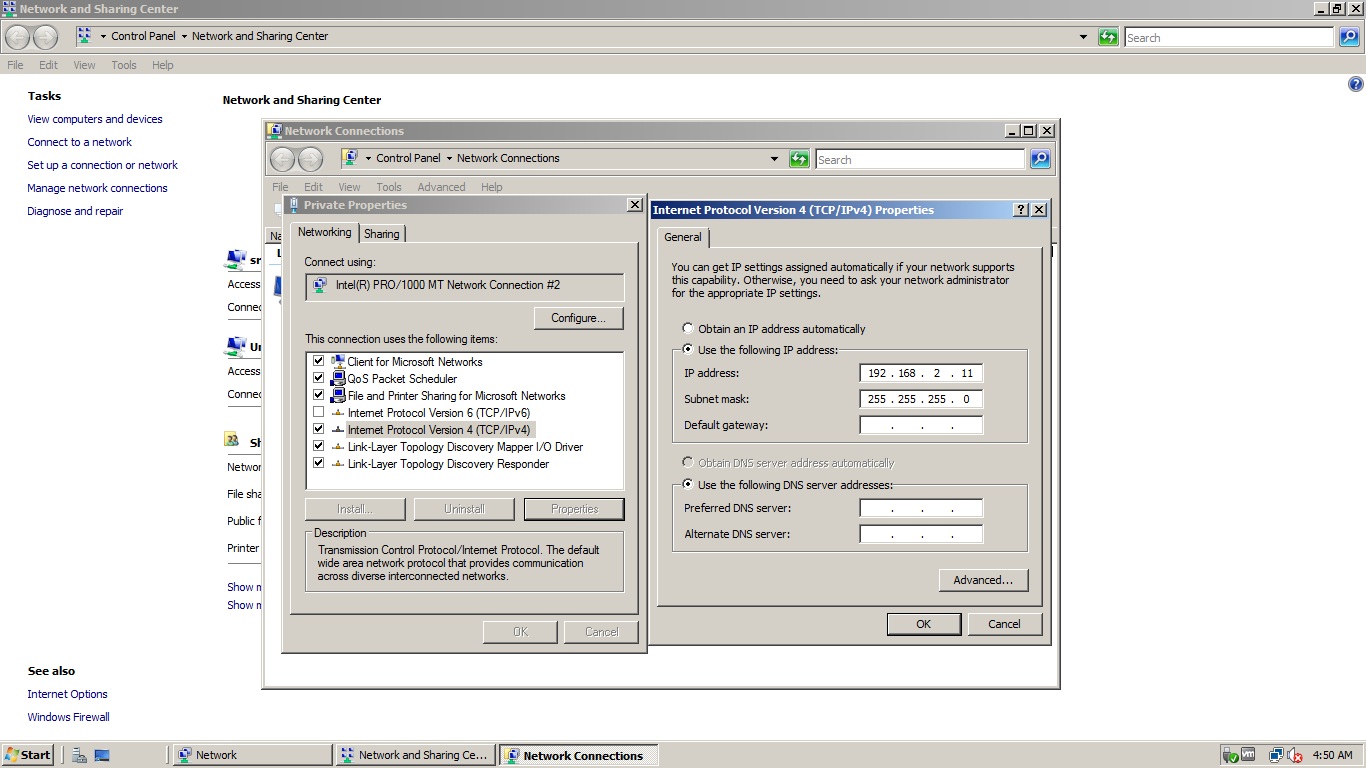
FYI You can see my Network(NIC and IP Addresses) Settings in below Screen shots.

My NIC Settings for Node2 machine:

192.168.1.102 – Public(Bridged)
192.168.2.11 – Private(host only)

Public:


Private:


NIC Settings for Node1:
Exactly similar settings except the change in IP Addresses.

192.168.1.101 – Public(bridged)
192.168.2.10 – private(host only)

Very Important: The preferred DNS IP address should be our SANDC machine IP(192.168.1.100 in my case) on Public NIC’s for both Node1 and Node2 machines.

Let’s see how to configure SAN using Starwind Software and create a windows cluster in the next part of this series.
Installing SQL Server 2008/2008R2 Failover Cluster- Part2

In the previous post InstallCluster Part-1 I’ve discussed about what are required prerequisites and few best practices. Assuming you’ve downloaded all the required software’s and Operating System ISO(x86 or x64 depending on your CPU), let’s continue to install windows Server 2008 VM(s).
Let’s install three VM’s in this 2nd part of series to prepare our LAB environment.
Step1: Install VMWare workstation on your PC/Laptop. Once installed successfully, we can create as many virtual machines as needed. In this Series, we’ll be installing 3 VM’s with Windows Sever 2008 enterprise edition.
VM1 – Domain Controller and my Server to hold SAN(Software based). Let’s call it as “SANDC”.
VM2 – Server 1 participating in our Cluster. Let’s call it as “NODE1”.
VM3 – Server 2 participating in our Cluster. Let’s call it as “NODE2”.

You can create a new VM by choosing either of the options as shown below.


Choose Typical(recommended) to keep it real simple as shown below.


I’ve already downloaded Windows Server 2008 ISO file from microsoft site. I’m selecting that Image as my installation media as shown below. You can choose DVD if you already’ve DVD handy.


You’ve to choose either Enterprise or DataCenter Version and proceed to next as shown below.


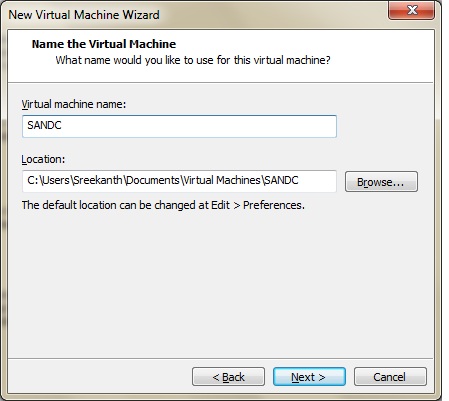
I’m naming it as SANDC as shown below(this machine would be my Domain controller and SAN Server).
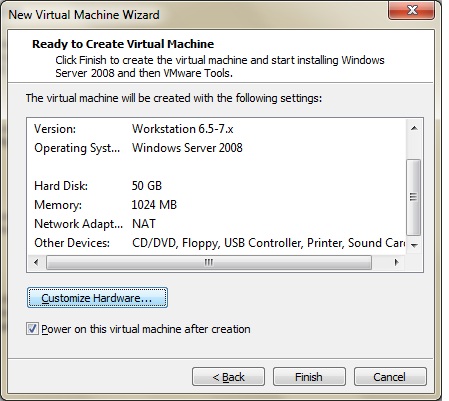
I’m creating this machine with 50 GB of size total(My entire SAN is included within this 50 GB of storage). You can choose accordingly.
Now It’s time to customize your Hardware. Click on the Customize hardware button as shown below and remove Floppy Drive and Printer devices. Also, you’ve to choose your Network adapter accordingly here.
Note: 
Any device can be added/removed or type of the device can be changed later even after installation with no issues. That’s the beauty of Virtualization:)

Note: 
Single Network Adapter(NIC) is enough for this machine since it’s acting as a DC and SAN. We need 2 NIC cards(one for public and one for private) for Node1 and Node2 machines since they are the actual machines participating in cluster.
Click OK and then Finish. You’ll be welcomed by the Microsoft Windows Server 2008 Installation Screen.
You should be seeing similar screen as shown below once you click next-next(I skipped activation, because mine is a free trial version and i don’t have any activation Key).
Nowwww, it’s time to Go and Grab some coffee or Soda 🙂 It will take 10-15 minutes to complete installation. Similarly Install 2 more VM’s with names Node1 and Node2. Once done make sure that all the latest updates are installed by clicking on “Windows Update” in Start menu(You’ve to be connected to Internet to be able to do this.) Let’s see how things look at first and how to create a brand new domain and add new machines to domain in the next series.

Installing SQL Server 2008/2008R2 Failover Cluster- Part1

This is the first part of the series “Installing SQL Server 2008/2008R2 Failover Cluster”.

Let me ask you something first! Have you ever been in the situation where you want to explore about your cluster, but your hands were tied because of the Live Production Server? Raise your Hands Up if “YES”.  I can see lot of hands raised. Okay!Come back to your normal position before somebody sees you raising your hand, sitting in front of your computer ;-p.
Did you ever think that ” hey what happens if i do this on my cluster, what is that option, what is this option etc…” but again you couldn’t because of the real environment. I Agree we’ve POC(Proof Of Concepts) Servers for DBA’s team, but how much freedom do you really have to destroy the entire cluster?? Do you really think that you Boss will be Okay if you destroy the entire cluster in your LAB?? Most of the LAB environments I’ve seen will be a simple Stand Alone Server(s) where we can install and play with new SQL Server(s) and Service Packs and so on….But really they don’t fulfill our desire to explore and play with cluster and SAN!!

Don’t worry…in this Series I’m going to explain step by step installation right from creating your own Domain on a Domain Controller, Build your own SAN(Yeyyyyyyy! Exciting huh???), Build your Windows Servers and at last Installing SQL Server 2008 Failover Cluster 🙂

Before going any further, please read What a cluster can do?. So…by this time i assume you understood what a cluster can do from 20,000 miles distance!
Let me explain little bit further:

  • Failover cluster is a combination of multiple Servers(Physical Nodes) all connected to a shared storage(SAN-Storage Area Network).
  • If your Primary Node fails for some reason,the hot spare node(Active-Passive config) takes over the ownership of your application and all your operations continue to work seamlessly
  • Failover Clustering provides high availability for your entire SQL Server Instance(Failover occurs as a Single unit) unlike Log shipping or Database Mirroring where they offer only Database level Failover. 
  • Your SQL Server Failover Cluster appears as a single computer to the clients connecting to you SQL Server.They don’t even know at what node SQL Server is running on. 
  • SQL Server offers Single Instance Clusters and Multi-Instance Clusters.
  • Single Instance:Let us say, you’ve only one SQL Server Instance running at any given time on your cluster. It’ll be running either on your 1st node or 2nd node.(Active-Passive).
  • Multi Instance: Let’s say you’ve 2 nodes running 2 Instances or even 4 Instances of SQL Server, Or let’s say you’ve 3 nodes where you’ve 2 Instances of SQL Server(Active-Active-Passive), the third node serving as a standby node ready to take ownership in an event of any failure of Node1 or Node2.
Hopefully below screenshot makes it more clear how things work in Clustered environment.


Things to Know:

  • Failover Clustering is an Enterprise edition feature. So, You can create a FOC only on Windows Server Enterprise or above(Windows Server Data Center Edition).
  • SQL Server 2008 Enterprise on Windows Server Enterprise/Data center supports upto 16 Physical Nodes and 50 Instances of SQL Servers 🙂
  • You can do SQL Server Cluster installation with SQL Standard edition too(But remember Windows needs to be minimum on enterprise edition)…but it only support upto 2 physical Nodes and can be scaled upto 16 Instances of SQL Server!!(which is never a good solution to go upto 16 Instances on Just 2 Nodes)
  • SSIS/SSRS are not cluster aware by default.(You can imagine SSRS as a Web Service where you really don’t need to be as a fail over cluster service. Typically it goes with scaled out deployment on NLB Clustering).
  • There are few tricks where we can cluster SSIS, but it is not recommended by Microsoft to cluster your SSIS installation.
Initial Preparation notes/Prerequisites for creating your LAB on your Laptop:
Download and Install Vmware Workstation on your Laptop. You can really go crazy with Vmware ESX(i) hosts and Vsphere or Citrix XEN Server. It’s up to you if you really think that your Laptop can handle all that load. I prefer VMWare Workstation to keep it very simple.
Download Openfiler here or Starwind Software here to Build Software based SAN. In my demo I’m going to use Starwind Software. I prefer Starwind considering its simplicity and ease of implementation(especially for LAB purposes).
Download Windows Server enterprise eval edition from microsoft.
Download SQL Server 2008/2008R2 Enterprise eval Edition from microsoft.
General Guide Lines for Installing a cluster in your Production environment:
  • Minimum 2 windows servers(enterprise edition) besides your domain controller.
  • All the participating Hardware and drives should be certified by microsoft.
  • minimum two NIC are needed per server. Netbios should be disabled on the network cards associated with HeartBeat(Private network).
  • Shared Storage(SAN) is needed. Again PS, this should be microsoft certified.
  • Ensure that disks have same drive letter mappings on all the physical nodes participating in clustering.
  • Windows Server Failover Clustering Feature and Application role should be added on Each node manually participating in SQL clustering.
Let us see the actual Windows installation(s) and setting up domain controller in the Second part of this Series. See you in next part.