In this Blog post let’s see how to fix DCOM Permissions issue for an user who receives below error when trying to connect to “SSIS” Remotely from a remote machine.
The Error Message you’ll receive when you are not granted required DCOM permissions is..
Connecting to the Integration Services service on the computer “mirrorstand” failed with the following error: “Access is denied.
“.
This error occurs when the computer has not been configured to allow remote connections through DCOM, or the user does not have permission to access the SQL Server Integration Services service through DCOM.

Note: The SSIS Server which I’m trying to connect is “MirrorStand”. The login which I’m trying to connect is ‘SREE\HR1″
So, how to fix this Error?
Solution:
Step 1: Log on to SSIS Server and Go to Component Services in Administrative Tools as shown below.

Step2: Navigate to DCOM Config ->MsDtsServer100 as shown below.

Step 3: Right Click on MsDtsServer100 and go to Properties and navigate to “Security” tab as shown below.

Step 4: Click “EDIT” beside all the three Options(Launch and Activation Permissions, Access Permissions and Configuration Permissions) shown in the above screenshot…
Once you click on ‘Edit’ button you will get the below screen where you’ve to add the required login as shown below.

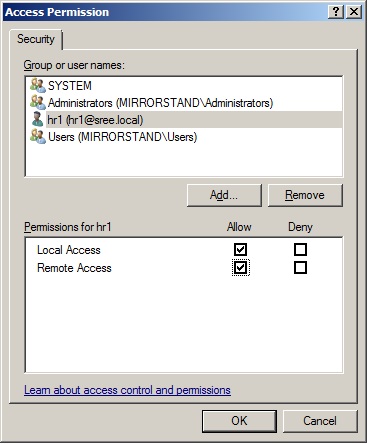
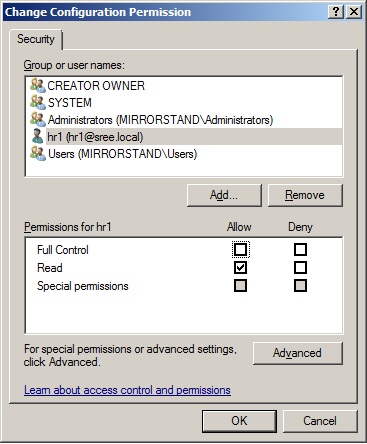
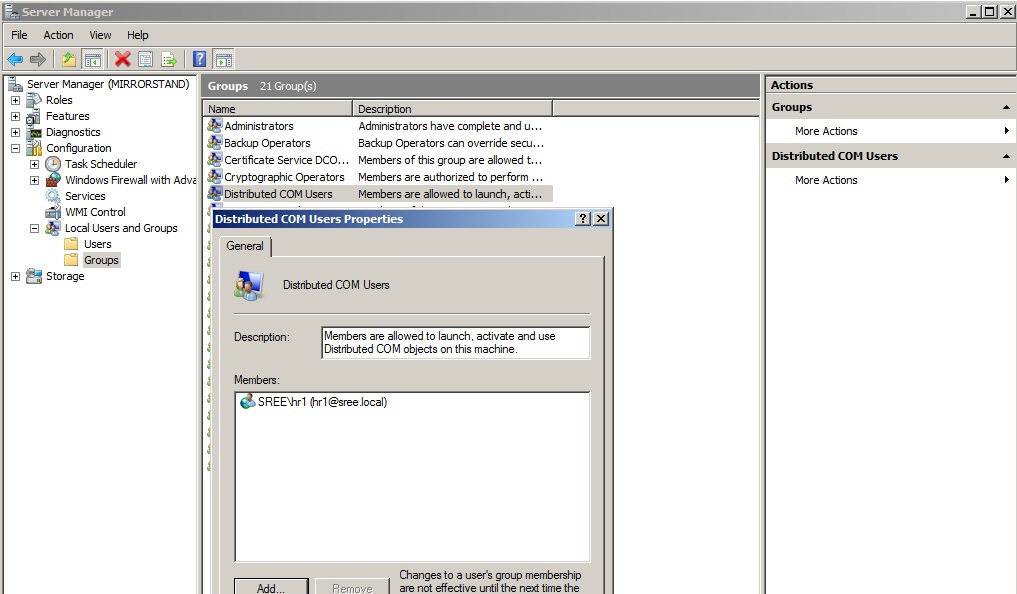
Once adding in DCOM – component services is completed, then navigate to “Users and Groups” in computer Management and add the login in “Distributed Com Users” Windows Group as shown below.
Once you are done with adding the above shown DCOM permissions, you have to Restart SSIS Service. Then the login(user) should be able to connect to SSIS remotely.
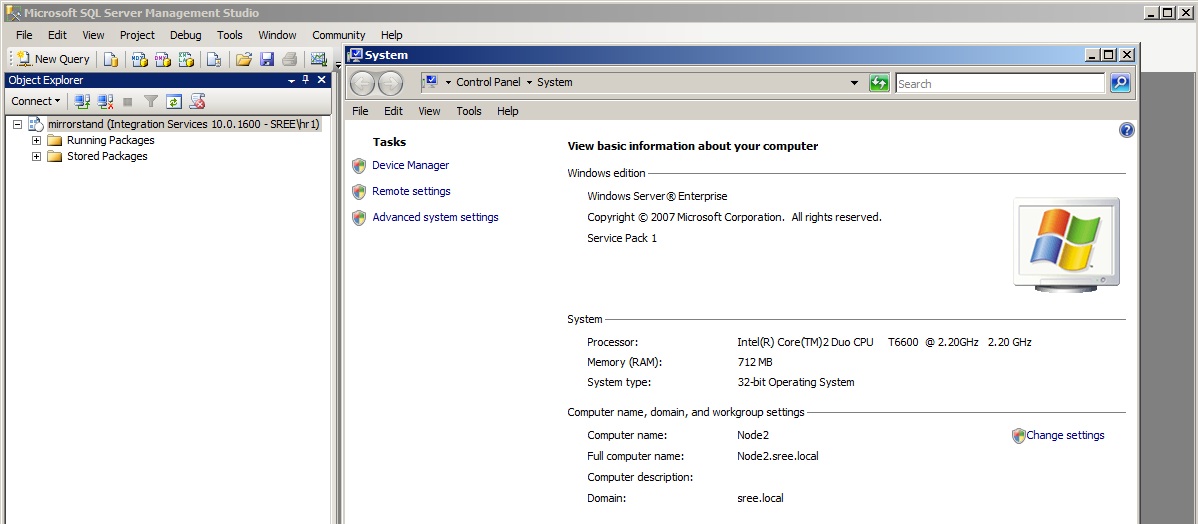
As you can see below in the screenshot, I’m able to connect to SSIS Remotely (from a different machine, “Node1” in my case ) as ‘Hr1’ Login.
Tadaaaaaaaaaaaaaaa……..We made it 🙂
Hope this Helps!


Leave a reply to RGP Cancel reply